Thanks for contributing to Jupyter Notebook!
Make sure to follow Project Jupyter's Code of Conduct for a friendly and welcoming collaborative environment.
Note: You will need NodeJS to build the extension package.
The jlpm command is JupyterLab's pinned version of yarn that is installed with JupyterLab. You may use
yarn or npm in lieu of jlpm below.
Note: we recomment using mamba to speed the creating of the environment.
# create a new environment
mamba create -n notebook -c conda-forge python nodejs -y

# activate the environment
mamba activate notebook

# Install package in development mode
pip install -e ".[dev,test]"

# Link the notebook extension and @jupyter-notebook schemas
jlpm develop

# Enable the server extension
jupyter server extension enable notebook
notebook follows a monorepo structure. To build all the packages at once:
jlpm buildThere is also a watch script to watch for changes and rebuild the app automatically:
jlpm watchTo make sure the notebook server extension is installed:
$ jupyter server extension list
Config dir: /home/username/.jupyter

Config dir: /home/username/miniforge3/envs/notebook/etc/jupyter
    jupyterlab enabled
    - Validating jupyterlab...
      jupyterlab 3.0.0 OK
    notebook enabled
    - Validating notebook...
      notebook 7.0.0a0 OK

Config dir: /usr/local/etc/jupyter
Then start Jupyter Notebook with:
jupyter notebookTo run the tests:
jlpm run build:test
jlpm run test
There are also end to end tests to cover higher level user interactions, located in the ui-tests folder. To run these tests:
cd ui-tests
# start a new Jupyter server in a terminal
jlpm start

# in a new terminal, run the tests
jlpm test
The test script calls the Playwright test runner. You can pass additional arguments to playwright by appending parameters to the command. For example to run the test in headed mode, jlpm test --headed.
Checkout the Playwright Command Line Reference for more information about the available command line options.
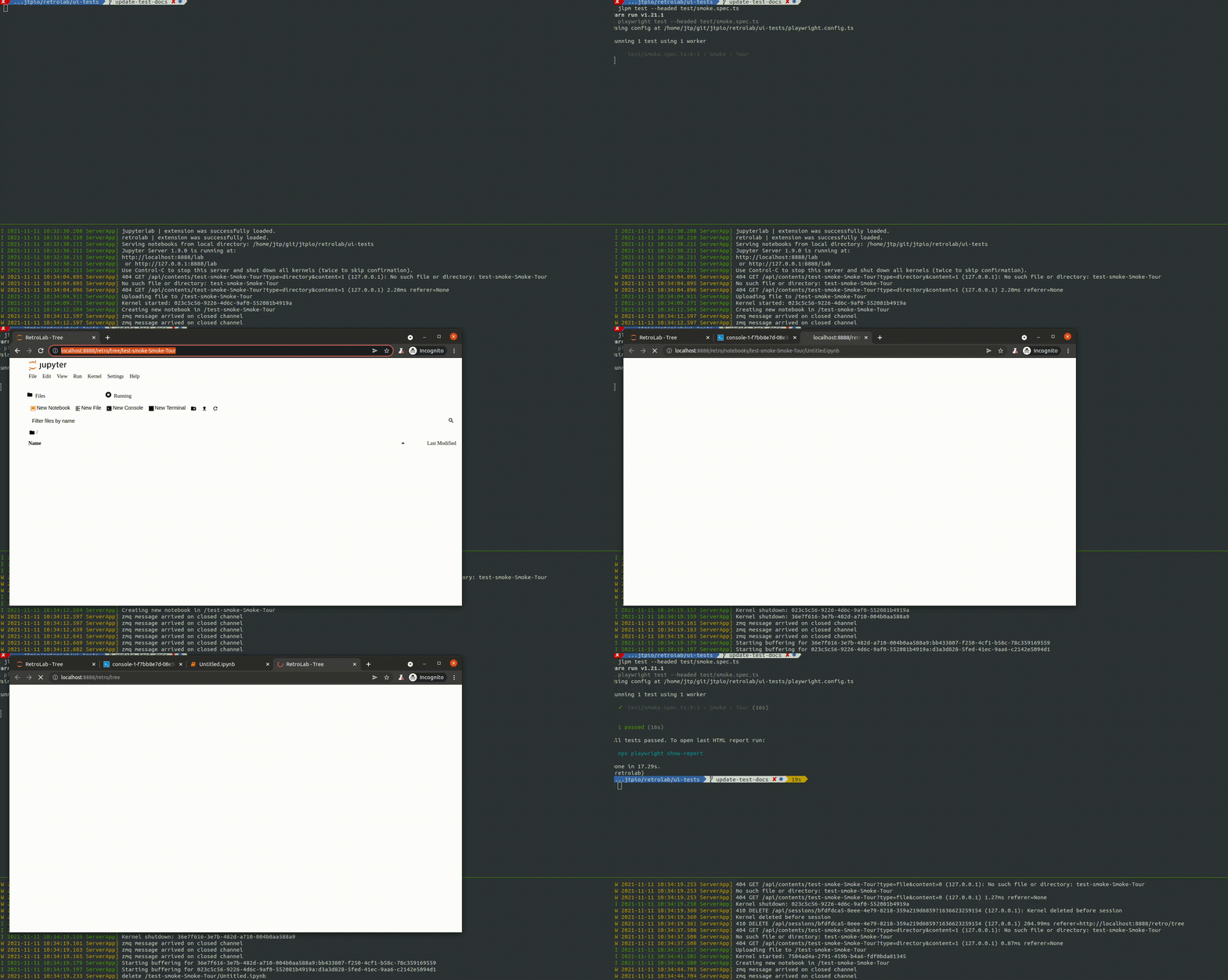
Running the end to end tests in headful mode will trigger something like the following:
All non-python source code is formatted using prettier and python source code is formatted using blacks
When code is modified and committed, all staged files will be
automatically formatted using pre-commit git hooks (with help from
pre-commit. The benefit of
using a code formatters like prettier and black is that it removes the topic of
code style from the conversation when reviewing pull requests, thereby
speeding up the review process.
As long as your code is valid,
the pre-commit hook should take care of how it should look.
pre-commit and its associated hooks will automatically be installed when
you run pip install -e ".[dev,test]"
To install pre-commit manually, run the following:
pip install pre-commit
pre-commit install
You can invoke the pre-commit hook by hand at any time with:
pre-commit runwhich should run any autoformatting on your code and tell you about any errors it couldn't fix automatically. You may also install black integration into your text editor to format code automatically.
If you have already committed files before setting up the pre-commit
hook with pre-commit install, you can fix everything up using
pre-commit run --all-files. You need to make the fixing commit
yourself after that.
You may also use the prettier npm script (e.g. npm run prettier or
yarn prettier or jlpm prettier) to format the entire code base.
We recommend installing a prettier extension for your code editor and
configuring it to format your code with a keyboard shortcut or
automatically on save.
Some of the hooks only run on CI by default, but you can invoke them by
running with the --hook-stage manual argument.