For contributions to the source code, start by reading the guide to building the plugin. Note that translations do not require changing any source.
Test your changes and open a pull request.
Raising an issue beforehand is encouraged but not required.
Note
In the examples below, replace ﹤language_name﹥ with the same name as the XML localization file used by Notepad++, without the file extension.
To translate the command menu found at Plugins ﹥ HTML Tag
- Open the HTMLTag-localizations.ini file and create a section like the following:
[﹤language_name﹥]
menu_0  = ; translation of the "Find matching tag" command
menu_1  = ; translation of the "Select matching tags" command
menu_2  = ; translation of the "Select tag and contents" command
menu_3  = ; translation of the "Select tag contents only" command
menu_4  = ; translation of the "Encode HTML entities" command
menu_5  = ; translation of the "Encode HTML entities (incl. line breaks)" command
menu_6  = ; translation of the "Decode HTML entities" command
menu_7  = ; translation of the "Encode Unicode characters" command
menu_8  = ; translation of the "Decode Unicode characters" command
menu_9  = ; translation of the "Automatically decode entities" option
menu_10 = ; translation of the "Automatically decode Unicode characters" option
menu_11 = ; translation of the "(Information) About" command
menu_12 = ; translation of the "Auto-complete HTML entities" option
err_compat = ; error message saying the current Notepad++ version is not compatible with (64-bit) HTML Tag
err_config = ; error message saying that no HTML entities file (entities.ini) was found
err_config_msg = ; translation of these 3 phrases:
                 ; "must be in the (file) folder", "or", "in the (file) folder"
; each phrase separated by "|"- To preview your changes, save the file to your local user’s configuration folder. To locate it, follow these steps:
- start Notepad++ with Html Tag installed
- select
Plugins ﹥ HTML Tag ﹥ About... - click the Localizations file link:
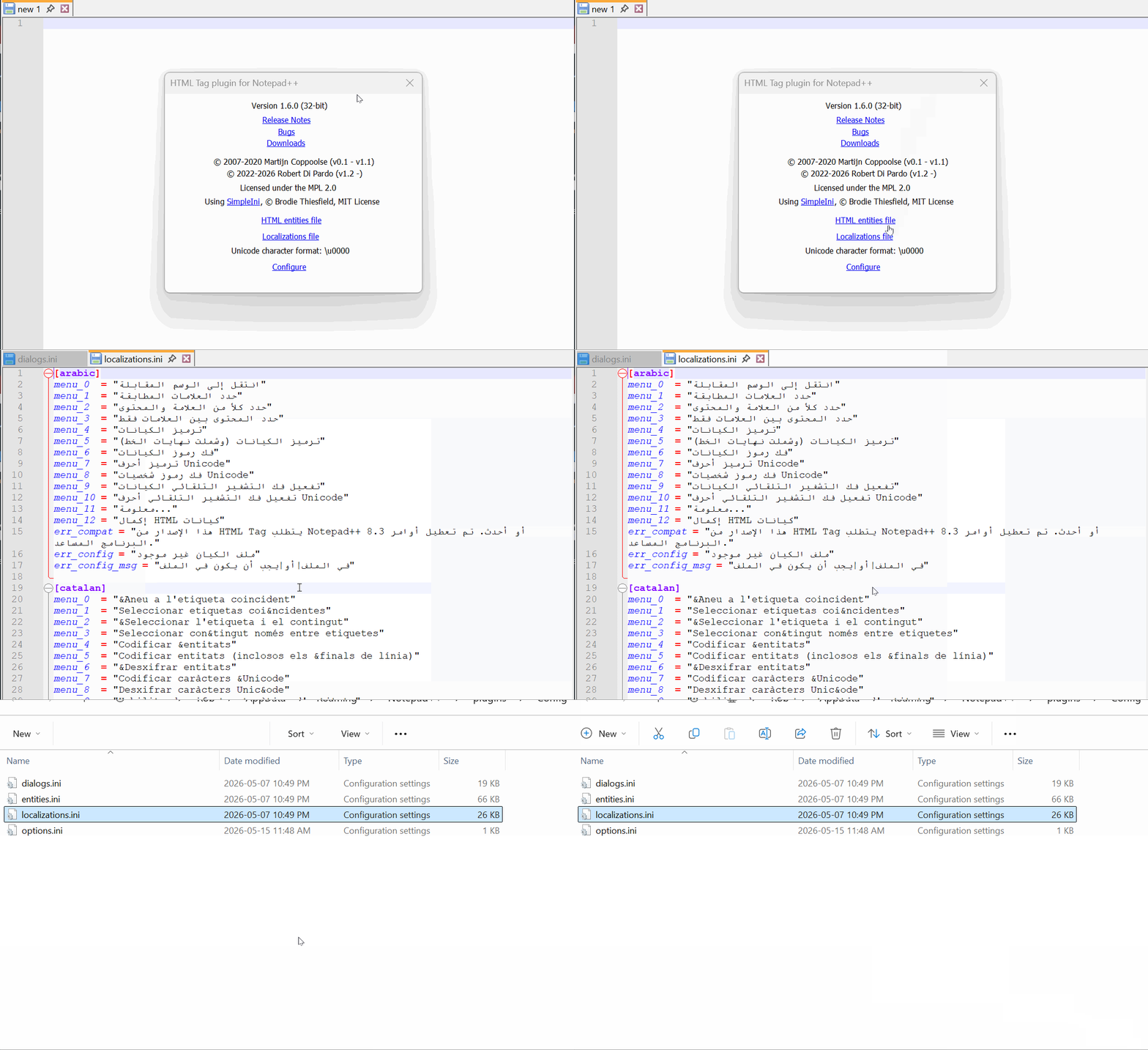
- rename the
localizations.inifile by selectingFile ﹥ Save As... - save your edited
HTMLTag-localizations.inifile in the same folder as the oldlocalizations.inifile
To translate the About dialog (see Plugins ﹥ HTML Tag ﹥ About...):
- Open the HTMLTag-dialogs.ini file and create a section like the following:
[﹤language_name﹥]
about_caption = ; window title of the About dialog
about_version = ; translation of the "Version" label
about_rel_notes = ; translation of the "Release notes" label
about_bugs = ; translation of the "Bug tracker" label
about_downloads = ; translation of the "Downloads" label
about_license = ; translation of the "Licensed under the MPL 2.0" label
about_3rd_party = ; translation of the "Using (i.e., 3rd-party software)" label
about_entities_file = ; translation of the "HTML entities file" label
about_l10n_file = ; translation of the "Localizations file(s)" label
about_unicode_format = ; translation of the "Unicode character format" label
about_unicode_config = ; translation of the "Configure (imperative)" label
unicode_dlg_caption = ; window title of the Unicode character input dialog
unicode_dlg_format = ; translation of the input dialog's "Format" label
unicode_dlg_ok = ; translation of the input dialog's "OK" button label
unicode_dlg_cancel = ; translation of the input dialog's "Cancel" button label
unicode_dlg_reset = ; translation of the input dialog's "Reset" button label- To preview your changes, follow the same steps as above, except:
- rename the
dialogs.inifile by selectingFile ﹥ Save As... - save your edited
HTMLTag-dialogs.inifile in the same folder as the olddialogs.inifile
- rename the